Page Editor
In the page editor, you can manage Flexbar devices, preview and edit pages. You can use the mouse wheel to zoom and drag the virtual Flexbar.
 Feature descriptions:
Fit to screen: Click to reset Flexbar’s zoom level and position
Tree view: Click to browse all subpages and keys in a tree structure for quick navigation between multiple subpages
Save your changes
Undo
Redo
Key temporary storage: You can temporarily store keys here for later use
Device overview: Select devices to upload here
Upload configuration to device
Page scroll: When elements exceed page width, use the scroll buttons on both sides to browse the interface
Drawer button: Click to open the drawer. Keys in the drawer won’t change with the main page and can be used for frequently used keys
Preview interface: Drag to reorder keys or drag new keys from the key library
Storage status indicator: Your configuration is saved to Flexbar, showing storage space usage. Keys don’t use much storage, but GIFs do
Key Submenu
Right-click on a key to open the menu.

Functions in order:
Copy current key
Create a duplicate of current key on current page
Cut current key
Copy current key’s appearance
Paste copied appearance to current key
Delete current key
Save current key as image (not applicable to some keys)
Page Submenu
Right-click anywhere in the page editor to open the page submenu.
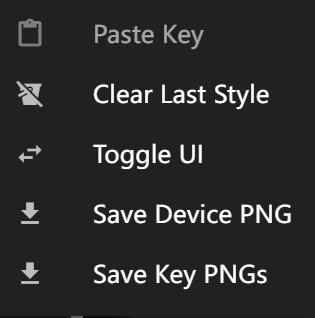
Functions in order:
Paste copied keys to current page
Clear auto-remembered styles
Close virtual UI
Save current page as image (not applicable to some keys)
Save each key as a separate image (not applicable to some keys)