Edit Foreground
This document describes how to customize the foreground of a key, including its icon, text, shadow, and other visual elements.
Interface Overview

Feature Overview:
Foreground Color Settings
Built-in Icon Selector
Custom Icon Selector
Emoji Selector
Preset Layout Selector
Show Icon (mutually exclusive with Show Emoji)
Show Emoji (mutually exclusive with Show Icon)
Show Title
Show Shadow
Icon Parameter Settings - Adjust icon size, rotation, and XY-axis position using sliders
Title Edit Box - Supports multi-line text
Title Font Settings - Adjust title font, bold, and italic styles
Title Parameter Settings - Adjust title size, rotation, and XY-axis position using sliders
Built-in Icon Selector
Click ② in the foreground editing interface to open the built-in icon selector.
The built-in icon selector contains over 7,000 icons organized by category.
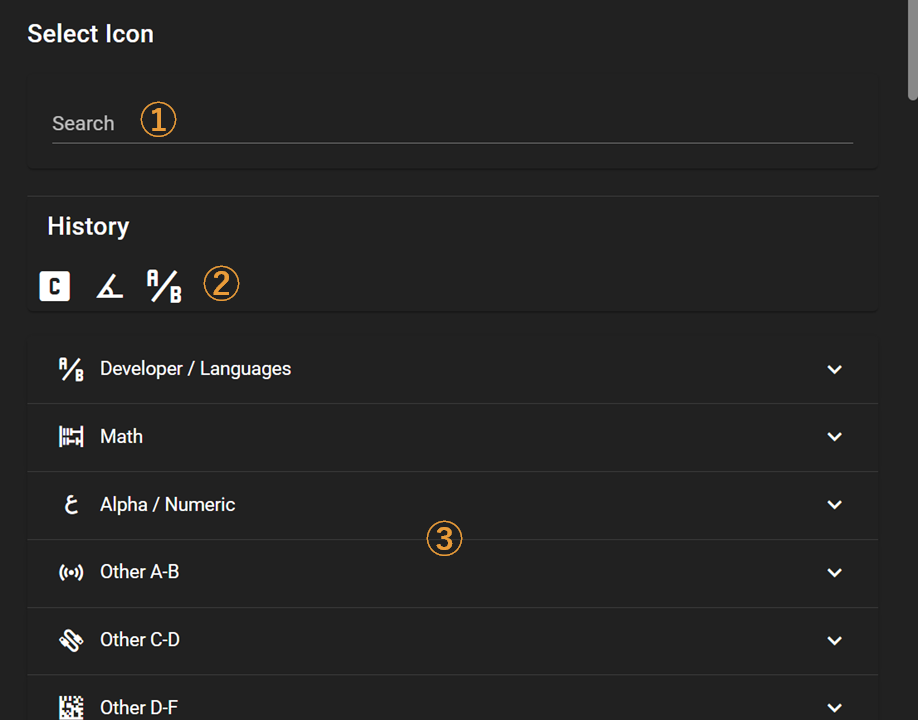
Feature Overview:
Icon Search - Search by icon code or keywords
Icon History - Recently selected icons appear here
Icon Category Browser - Click to open icon categories, scroll down to view more categories
Custom Icon Selector
Click ③ in the foreground editing interface to open the custom icon selector.
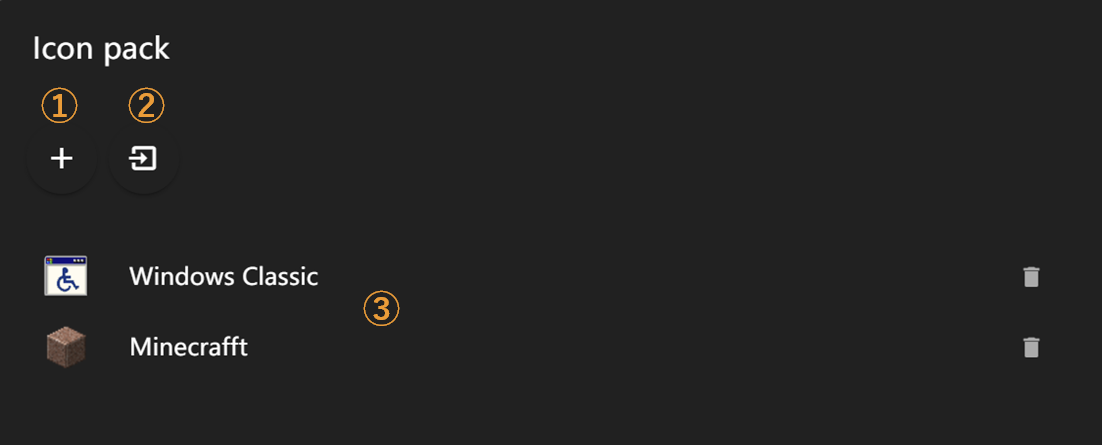
Feature Overview:
Create a new icon pack
Import an icon pack from file (.iconpack)
Icon Pack List - Click to enter the respective icon pack
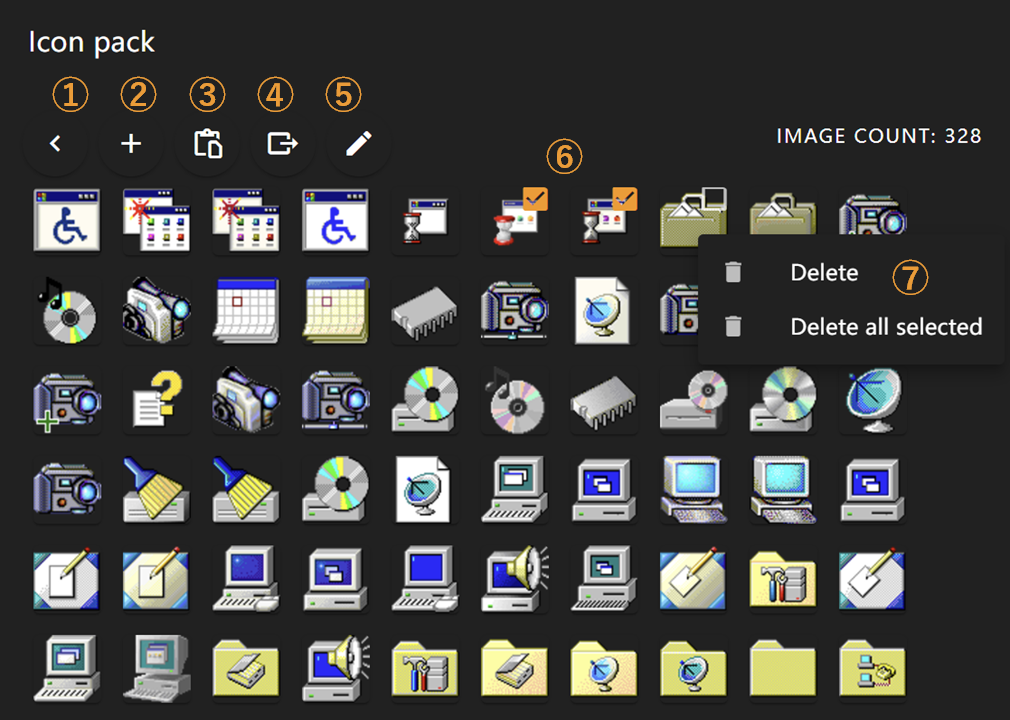
After clicking ③ on the previous page, you’ll enter the icon selection page. Feature Overview:
Return to previous page
Open image files to add as icons - supports adding multiple icons at once
Import images from clipboard to add as icons
Export current icon pack to file (.iconpack)
Edit current icon pack title and description
Hover over any icon to click and use, or use selection box for multiple icon selection
Right-click on icons to open menu - delete current icon or multiple selected icons
Emoji Selector
Click ④ in the foreground editing interface to open the Emoji selector, where you can choose your favorite Emojis to use as icons.
Note: Emoji appearance may vary across different operating systems

Preset Layout Selector
Click ⑤ in the foreground editing interface to open the preset layout selector, which offers several common icon-title layouts for direct use.
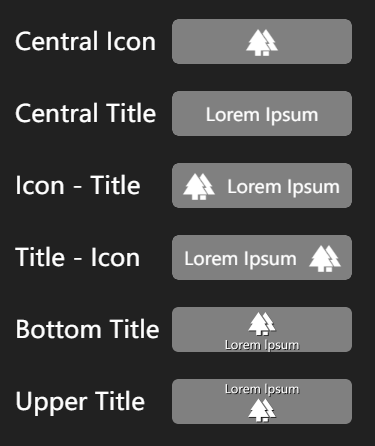
Font Selector
Click ⑫ in the foreground editing interface to open the font selector.
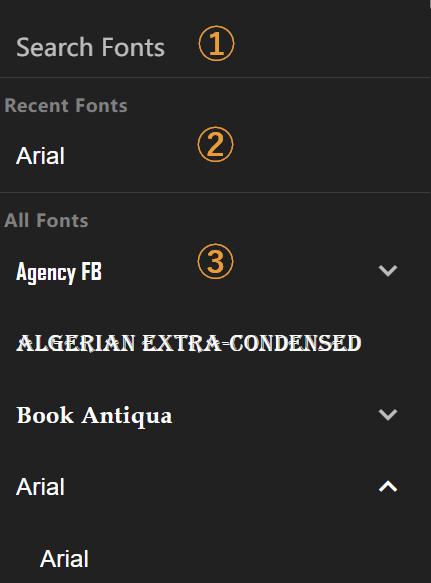
Feature Overview:
Font Search Box - Search for font names
Recently Used Fonts - Your recently selected fonts appear here
Font List - Preview font appearances directly, with multiple font styles shown in submenus if available